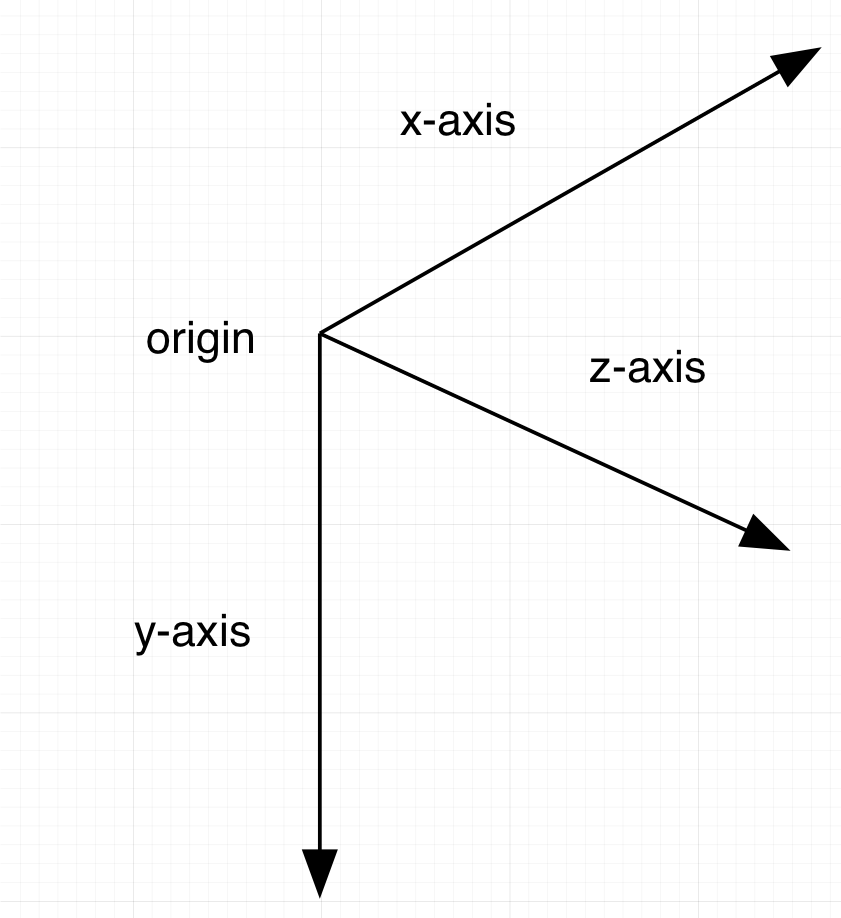
There are a number of different transform you can do on a layer, but the basic ones are
 translate(Move)[/caption]
 Scale[/caption]
 Rotation[/caption]
Github Repo: https://github.com/Joynal279/TransformsAddingCALayer
Reference by: https://riptutorial.com/ios/example/16244/adding-transforms-to-a-calayer--translate--rotate--scale-
Rotation[/caption]
Github Repo: https://github.com/Joynal279/TransformsAddingCALayer
Reference by: https://riptutorial.com/ios/example/16244/adding-transforms-to-a-calayer--translate--rotate--scale-
- Translate (move)
- Scale
- Rotate
myLayer.transform = CATransform3DMakeTranslation(20, 30, 0)The word \"
Make\" is used in the name for creating the initial transform “CATransform3DMakeTranslation”. Subsequent transforms that are applied omit the “Make”. This rotation followed by a translation:
Let rotate = CATransform3DMakeRotation(CGFloat(30.0 * M_PI / 180.0),  20, 20, 0)

myLayer.transform = CATransform3DTranslate(rotation,  20, 30, 0)
**Initial UI Setup:
//
//  ViewController.swift
//  TransformsAddingCALayer
//
//  Created by JOYNAL ABEDIN on 28/8/22.
//

import UIKit

class ViewController: UIViewController {

    //MARK: - properties
    var myLayer = CATextLayer()
    var myView = UIView()

    //MARK: - Init LifeCycle
    override func viewDidLoad() {
        super.viewDidLoad()
        // Do any additional setup after loading the view.
        setupMyViewInterface()
        setupMyLayerInterface()
    }

    //MARK: - Setup Initial interface
    func setupMyViewInterface(){
        myView.frame = CGRect(x: 50, y: 100, width: 250, height: 200)
        myView.backgroundColor = .lightGray
        self.view.addSubview(myView)
    }
    func setupMyLayerInterface(){
        myLayer.frame = CGRect(x: 0, y: 0, width: 100, height: 50)
        myLayer.backgroundColor = UIColor.blue.cgColor
        myLayer.string = \"Swift\"
        myView.layer.addSublayer(myLayer)
    }

}
1.Translate
The translation transform moves the layer. Syntax:CATransform3DMakeTranslation(tx: CGFloat, ty: CGFloat, tz: CGFloat)
Where tx change the x coordinates,
ty change the y coordinate & finally,
tz change the z coordinate.
In iOS the origin of the coordinate system is in the top left. So if we wanted to move the layer 100 points right(From X coordinate) & 60 points(From Y coordinate
) down then we should do the following:
myLayer.transform = CATransform3DMakeTranslation(100, 60, 0)
Now we implement new function named transformApplyExample() & written code in the function. Call this function after setup interface.
//
//  ViewController.swift
//  TransformsAddingCALayer
//
//  Created by JOYNAL ABEDIN on 28/8/22.
//

import UIKit

class ViewController: UIViewController {

    //MARK: - properties
    var myLayer = CATextLayer()
    var myView = UIView()

    //MARK: - Init LifeCycle
    override func viewDidLoad() {
        super.viewDidLoad()
        // Do any additional setup after loading the view.
        setupMyViewInterface()
        setupMyLayerInterface()
        transformApplyExample()
    }

    //MARK: - Setup Initial interface
    func setupMyViewInterface(){
        myView.frame = CGRect(x: 50, y: 100, width: 250, height: 200)
        myView.backgroundColor = .lightGray
        self.view.addSubview(myView)
    }
    func setupMyLayerInterface(){
        myLayer.frame = CGRect(x: 0, y: 0, width: 100, height: 50)
        myLayer.backgroundColor = UIColor.blue.cgColor
        myLayer.string = \"Swift\"
        myView.layer.addSublayer(myLayer)
    }

    func transformApplyExample(){
        myLayer.transform = CATransform3DMakeTranslation(100, 60, 0)
    }

}
Output:
[caption id=\"attachment_403\" align=\"aligncenter\" width=\"139\"] translate(Move)[/caption]
2. Scale
The scale transform stretches or squishes the layer. SyntexCATransform3DMakeScale(sx: CGFloat, sy: CGFloat, sz: CGFloat)
Where sx, sy and sz are the numbers by which to scale (multiply) the x, y and z coordinates respectively.
myLayer.transform = CATransform3DMakeScale(0.5, 3.0, 1.0)
[caption id=\"attachment_405\" align=\"aligncenter\" width=\"139\"] Scale[/caption]
-
Rotate
CATransform3DMakeRotation(angle: CGFloat, x: CGFloat, y: CGFloat, z: CGFloat)
Where angle is the angle in radians that the should be rotated and x, y, z are the axes about which to rotate. Setting an axis to 0 cancels a rotation around that particular axis.
If we wanted to rotate a layer clockwise 30 degrees, we would do the following:
let degrees = 30.0
let radians = CGFloat(degrees * M_PI / 180)
myLayer.transform = CATransform3DMakeRotation(radians, 0.0, 0.0, 1.0)
This rotated the layer in a clockwise direction. We could have rotated counterclockwise by setting z to -1.0.
//
//  ViewController.swift
//  TransformsAddingCALayer
//
//  Created by JOYNAL ABEDIN on 28/8/22.
//

import UIKit

class ViewController: UIViewController {

    //MARK: - properties
    var myLayer = CATextLayer()
    var oldView = CATextLayer()
    var myView = UIView()

    //MARK: - Init LifeCycle
    override func viewDidLoad() {
        super.viewDidLoad()
        // Do any additional setup after loading the view.

        setupMyViewInterface()
        setupMyLayerInterface()
        transformApplyExample()
    }

    //MARK: - Setup Initial interface
    func setupMyViewInterface(){
        self.view.backgroundColor = .brown
        myView.frame = CGRect(x: 50, y: 100, width: 250, height: 200)
        myView.backgroundColor = .lightGray
        self.view.addSubview(myView)
    }
    func setupMyLayerInterface(){
        myLayer.frame = CGRect(x: 0, y: 0, width: 100, height: 50)
        myLayer.backgroundColor = UIColor.blue.cgColor
        myLayer.string = \"Swift\"
        myView.layer.addSublayer(myLayer)

        oldView.frame = CGRect(x: 0, y: 0, width: 100, height: 50)
        oldView.backgroundColor = UIColor.blue.withAlphaComponent(0.2).cgColor
        oldView.string = \"Swift\"
        myView.layer.addSublayer(oldView)

    }

    func transformApplyExample(){

        let degrees = 30.0
        let radians = CGFloat(degrees * M_PI / 180)

        //myLayer.transform = CATransform3DMakeTranslation(100, 60, 0)
        //myLayer.transform = CATransform3DMakeScale(0.5, 3.0, 1.0)
        myLayer.transform = CATransform3DMakeRotation(radians, 0.0, 0.0, 1.0)
    }

}
Output:
[caption id=\"attachment_408\" align=\"aligncenter\" width=\"139\"] Rotation[/caption]
Github Repo: https://github.com/Joynal279/TransformsAddingCALayer
Reference by: https://riptutorial.com/ios/example/16244/adding-transforms-to-a-calayer--translate--rotate--scale-
0 Comments
Leave a Comment