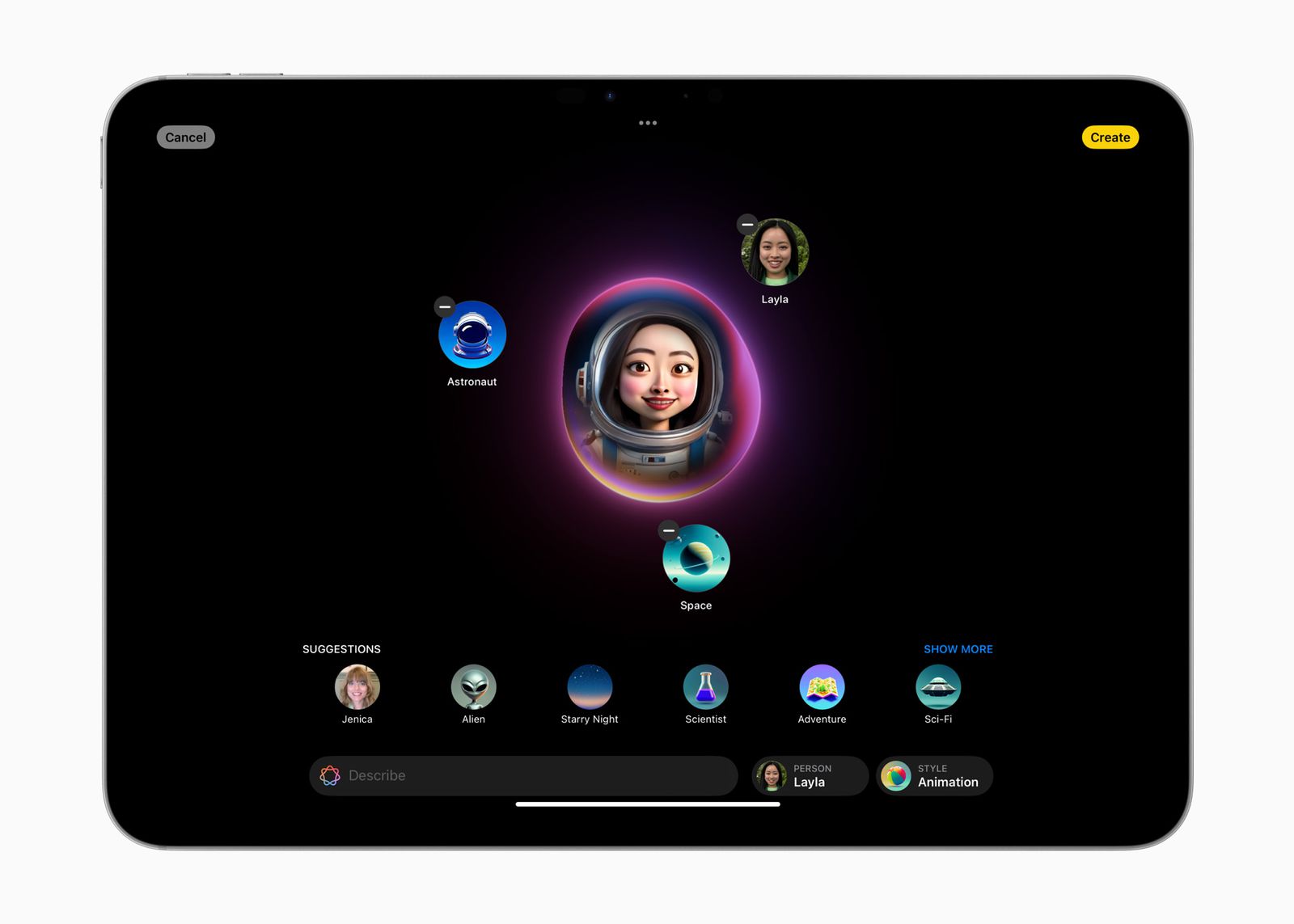
A step-by-step guide from zero to AI-powered image generation — with complete, production-ready Swift code.
🍎 ImagePlayground.framework
SwiftUI + UIKit covered
Full source included
What's inside
- What is Image Playground?
- What the model can create
- Adopting Image Playground — the sheet modifier
- Seeding context with concepts
- Configuring size, style & personalization
- UIKit / AppKit support
- Handling availability gracefully
- Complete final code
Section 01
What is Image Playground?
Image Playground is Apple's on-device and Private Cloud Compute image generation experience, built directly into iOS 18, iPadOS 18, macOS Sequoia, and visionOS 2. Users already encounter it in Messages and Freeform — and now you can bring that same quality straight into your own app via ImagePlayground.framework.
Key promise: No API key, no server to provision, no usage-related UI to build. You call the framework — Apple handles the rest, including usage limits tied to iCloud+ plans.
🔒
Private Cloud Compute
Images are generated on Apple's privacy-preserving infrastructure. Your users' data is never stored or shared — even with Apple.
📱
Supported platforms
iOS, iPadOS, macOS, and visionOS — on any device that supports Apple Intelligence.
⚡
Deprecation note
ImageCreator (the old non-UI API) is now deprecated. The new API offers higher quality and built-in privacy — migrate as soon as possible.
🎨
What's new
Photorealistic styles, multiple sizes and aspect ratios, personalization from Photos, and a brand-new API surface.
Section 02
What the model can create
Before writing any code, understand what the model supports — this shapes how you design concepts and options for your specific use case.
Text-to-image
Pass a text description and the model creates a matching image. You can be as specific as \"a birthday celebration with dogs, balloons and confetti\" or as vague as \"celebration\" — the model handles interpretation.
People & personalization
The model can depict multiple people in a single scene. With personalization enabled, users can include someone from their Photos library, or describe an appearance using text alone.
Available styles
Animation, Illustration, Sketch, Genmoji (emoji) Photorealistic (any style in text)
You can also specify a style in plain text (e.g., \"oil painting style\") without using a preset — the model interprets it.
Sizes & aspect ratios
Request landscape (banner), portrait (full-screen iPhone), or square (thumbnail). The model picks the closest supported resolution to the size you specify via CGSize.
Section 03
Adopting Image Playground — the sheet modifier
Everything starts with a single SwiftUI view modifier. There's no SDK initialization, no API keys, no server endpoints. Here's the minimal setup:
- 1 Import the frameworkAdd
import ImagePlaygroundat the top of your Swift file alongsideimport SwiftUI. - 2 Add a @State booleanDeclare
@State private var showImagePlayground = false. Flipping this totruepresents the sheet. - 3 Attach
.imagePlaygroundSheetAdd the modifier to your view hierarchy with a binding to the boolean and a completion closure that receives the generated image URL. - 4 Save the URL immediatelyThe URL points to a temporary location inside your app container. Copy it to persistent storage before the session ends.
ContentView.swift — minimal setup
import SwiftUI
import ImagePlayground

struct ContentView: View {

    // 1. Boolean to drive the sheet
    @State private var showImagePlayground = false
    @State private var generatedImageURL: URL?

    var body: some View {
        Button(\"Generate Image\") {
            showImagePlayground = true   // 2. flip to present
        }
        // 3. attach the modifier
        .imagePlaygroundSheet(isPresented: $showImagePlayground) { imageURL in
            generatedImageURL = imageURL   // 4. save immediately
            saveGeneratedImage(imageURL)
        }
    }
}
Important: The URL returned in the completion closure is temporary. Always copy it to FileManager, SwiftData, or CoreData before the playground session ends.
Section 04
Seeding context with concepts
The sheet can open with an empty prompt, but the real power comes from seeding it with context your app already knows about. ImagePlaygroundConcept has four factory methods:
| Factory method | What you pass | Best for |
|---|---|---|
.text(_:) | A direct description string | Themes, keywords, short prompts |
.extracted(from:title:) | Longer body text + a title hint | A card message, a note, an article excerpt |
.drawing(_:) | A PKDrawing from PencilKit | iPad canvas sketches as visual suggestions |
sourceImage: param | A SwiftUI Image | An existing photo or artwork as inspiration |
Design tip: Use .text for the card's theme and .extracted for the card's message — the system automatically picks out the most relevant ideas from longer text, so users don't have to write a prompt at all.
Concepts — all four types
import PencilKit

private let theme  = \"Park\"
private let message = \"Two friends having a picnic on a sunny day\"
@State private var drawing = PKDrawing()
@State private var sourceImage: Image?

// Build the concepts array
private var concepts: [ImagePlaygroundConcept] {
    var result: [ImagePlaygroundConcept] = [
        .text(theme),                               // direct keyword
        .extracted(from: message, title: theme)  // long text extraction
    ]
    // Only add the drawing if the canvas has strokes
    if !drawing.strokes.isEmpty {
        result.append(.drawing(drawing))
    }
    return result
}

// Pass concepts + a sourceImage into the sheet
.imagePlaygroundSheet(
    isPresented: $showImagePlayground,
    concepts: concepts,
    sourceImage: sourceImage        // optional visual starting point
) { imageURL in
    generatedImageURL = imageURL
}
sourceImage is a starting point, not a constraint. The user can replace or refine it inside the sheet. Use a photo the user already picked, or the card's existing artwork.
Section 05
Configuring size, style & personalization
Use ImagePlaygroundOptions and ImagePlaygroundStyle to control what the sheet offers.
Size & aspect ratio
Pass any CGSize to .closest(to:) — the system maps it to the nearest supported resolution. Because your size comes from the card's format, it automatically adapts:
Size configuration
private var playgroundOptions: ImagePlaygroundOptions {
    var options = ImagePlaygroundOptions()
    options.sizeSpecification = .closest(
        to: CGSize(width: 1024, height: 1024)  // square
        // to: CGSize(width: 1600, height: 900)  // landscape
        // to: CGSize(width: 900, height: 1600)  // portrait
    )
    return options
}
Styles
Use .imagePlaygroundGenerationStyle(_:in:). The first argument is the default selected style; the array is the allowed list. Pass a single-element array to lock the picker to one style.
Style configuration
// Default to animation; allow animation, illustration, emoji, sketch
.imagePlaygroundGenerationStyle(
    .animation,
    in: [.animation, .illustration, .emoji, .sketch]
)

// Lock to illustration only
.imagePlaygroundGenerationStyle(.illustration, in: [.illustration])

// Offer a third-party provider (e.g. ChatGPT) if configured by the user
.imagePlaygroundGenerationStyle(
    .illustration,
    in: [.illustration, .sketch, .externalProvider]
)
Genmoji style note: When .emoji style is active, the completion uses a separate closure — onAdaptiveImageGlyphCreation — and returns an NSAdaptiveImageGlyph instead of a URL. This can be embedded inline in text, just like an emoji.
Personalization
Personalization is on by default. If your app doesn't benefit from it (e.g. a product image generator), disable it explicitly:
Disable personalization
var options = ImagePlaygroundOptions()
options.personalization = .disabled  // hides people picker entirely
Setting this to .disabled removes the people picker and name detection from the sheet entirely — no extra UI work required on your end.
Pass options to the sheet
Attaching options
.imagePlaygroundSheet( … )
.imagePlaygroundOptions(playgroundOptions)   // size + personalization
.imagePlaygroundGenerationStyle(.animation, in: [ … ])  // styles
Section 06
UIKit / AppKit support
For UIKit or AppKit apps, use ImagePlaygroundViewController instead of the SwiftUI modifier. The API mirrors SwiftUI exactly:
- 1 Set concepts and options as propertiesConfigure
concepts,sourceImage, andoptionson the view controller before presenting it. - 2 Present the view controllerUse
present(_:animated:)as you would any other UIViewController. - 3 Implement the delegateConform to the delegate and implement
imagePlaygroundViewController(_:didCreateImageAt:)to receive the result URL.
No code example shown here — the SwiftUI wrapper is recommended for all new projects. If you maintain a UIKit app, the property names and delegate method are identical to the SwiftUI parameter names above.
Section 07
Handling availability gracefully
Image Playground requires Apple Intelligence support, a compatible language/region, and the user must have image generation enabled in Settings. Use the supportsImagePlayground environment value — it returns true only when all three conditions are met.
Availability check
// Declare the environment value
@Environment(\.supportsImagePlayground) var supportsImageGeneration

// Use it to switch between full experience and a fallback
.overlay {
    if !supportsImageGeneration {
        ContentUnavailableView(
            \"Image Generation Unavailable\",
            systemImage: \"exclamationmark.triangle\",
            description: Text(
                \"This device does not support Apple Intelligence Image Playground.\"
            )
        )
    }
}
No extra entitlement needed. This environment value alone is sufficient — no capability check, no feature flag. Show the full Image Playground experience when it's true; fall back to a PhotosPicker or any other alternative when it's false.
This single conditional cleanly supports both supported and unsupported devices with zero extra boilerplate.
Section 08
Complete final code
Everything above combined into one production-ready ContentView.swift. Copy this file into your Xcode project, add ImagePlayground and PencilKit to your target, and run.
iOS 18+iPadOS 18+macOS Sequoia+visionOS 2+Swift 6 SwiftUI
ContentView.swiftComplete source
//  ContentView.swift
//  Created by Joy Chowdhury on 6/10/26.

import SwiftUI
import ImagePlayground
import PencilKit

struct ContentView: View {

    // MARK: - State
    @State private var showImagePlayground = false
    @State private var generatedImageURL: URL?

    @State private var sourceImage: Image?
    @State private var drawing = PKDrawing()

    @Environment(\.supportsImagePlayground) var supportsImageGeneration

    // MARK: - Sample Content
    private let theme = \"Park\"
    private let message = \"\"\"
    Two friends having a picnic in sunny park and checkered blanket
    \"\"\"

    // MARK: - Concepts
    // Build the concept list from your app's existing data
    private var concepts: [ImagePlaygroundConcept] {
        var result: [ImagePlaygroundConcept] = [
            .text(theme),
            .extracted(from: message, title: theme)
        ]
        if !drawing.strokes.isEmpty {
            result.append(.drawing(drawing))
        }
        return result
    }

    // MARK: - Playground Options
    private var playgroundOptions: ImagePlaygroundOptions {
        var options = ImagePlaygroundOptions()
        options.personalization = .disabled
        options.sizeSpecification = .closest(
            to: CGSize(width: 1024, height: 1024)
        )
        return options
    }

    // MARK: - Body
    var body: some View {
        NavigationStack {
            VStack(spacing: 24) {
                if let imageURL = generatedImageURL {
                    VStack(spacing: 8) {
                        Image(systemName: \"photo.badge.checkmark\")
                            .font(.system(size: 50))
                        Text(\"Image Generated\")
                            .font(.headline)
                        Text(imageURL.lastPathComponent)
                            .font(.caption)
                            .foregroundStyle(.secondary)
                    }
                }

                Button {
                    showImagePlayground = true
                } label: {
                    Label(\"Generate Image\", systemImage: \"sparkles\")
                }
                .buttonStyle(.borderedProminent)

                Text(\"Create AI-generated images using Apple Image Playground.\")
                    .font(.footnote)
                    .foregroundStyle(.secondary)
                    .multilineTextAlignment(.center)
            }
            .padding()
            .navigationTitle(\"Image Playground\")
        }
        // Attach the sheet modifier + options at the NavigationStack level
        .imagePlaygroundSheet(
            isPresented: $showImagePlayground,
            concepts: concepts,
            sourceImage: sourceImage
        ) { imageURL in
            generatedImageURL = imageURL
            saveGeneratedImage(imageURL)
        }
        .imagePlaygroundOptions(playgroundOptions)
        .imagePlaygroundGenerationStyle(
            .animation,
            in: [.animation, .illustration, .emoji, .sketch]
        )
        // Graceful fallback for unsupported devices
        .overlay {
            if !supportsImageGeneration {
                ContentUnavailableView(
                    \"Image Generation Unavailable\",
                    systemImage: \"exclamationmark.triangle\",
                    description: Text(
                        \"This device does not support Apple Intelligence Image Playground.\"
                    )
                )
            }
        }
    }

    // MARK: - Save Image
    // Copy URL to FileManager / SwiftData / CoreData here
    private func saveGeneratedImage(_ url: URL) {
        print(\"Generated image URL:\")
        print(url.absoluteString)
    }
}

// MARK: - Preview
#Preview {
    ContentView()
}
Apple Image Playground — brings the models, you bring the story.
For deeper dives: \"Build with the new Apple Foundation Model on Private Cloud Compute\" · \"Bring expression to your app with Genmoji\" · \"Read between the strokes with PencilKit\"

0 Comments
Leave a Comment